Quick Start
This guide walks you through setting up PromptBlocks step by step. By the end, you'll have your context configured and be chatting with an AI that actually knows who you are.
Time to complete: About 10 minutes for initial setup.
Step 1: Set Up Your Global Context
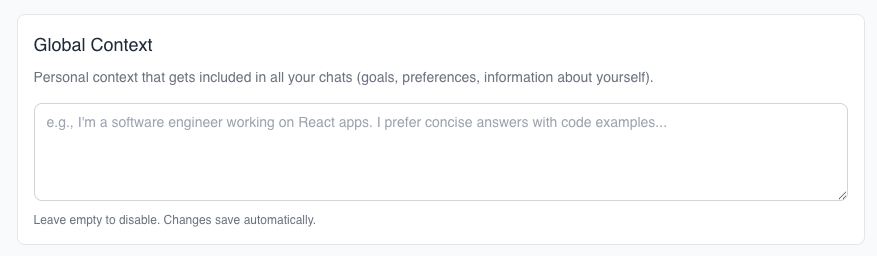
Your Global Context is personal information that gets included in every conversation. This is the foundation of PromptBlocks — set it once, and the AI always knows who you are.
How to Get There
- Click your profile picture at the bottom of the sidebar
- Select App Settings
- Find the Global Context section
Or go directly to build.promptblocks.app/settings/app
What to Write
Think about what you'd tell a brilliant assistant on their first day. Include:
- Who you are — Your role, profession, or situation
- What you're working on — Current goals or major projects
- How you prefer to work — Communication style, level of detail you want
- Anything the AI should always know — Industry context, constraints, preferences
Example
Here's what a consultant's Global Context might look like:
I'm an independent consultant working with mid-size companies on
operational efficiency. I typically have 3-4 active clients.

I prefer structured thinking: frameworks, bullet points, clear
recommendations. I'll often ask you to think through problems
with me before I present solutions to clients.

Current focus: Scaling my practice while maintaining work-life balance.
I'm selective about new clients — they need to be interesting problems
with good people.
Your context can be extensive. Some users write a few sentences. Others write several paragraphs covering their business model, client roster, and decision-making frameworks. There's no wrong length — include what helps the AI help you.
Save project-specific details for now — we'll add those to your project in the next step. For now, keep it high level about your overall situation and goals.
Save and Continue
Changes save automatically when you click away. You can always come back and refine your Global Context as you learn what works.
Step 2: Create Your First Project
Projects are workspaces for specific areas of your life or work. Each project has its own context, files, and conversation history.
Think about what you might create projects for:
- A client you're working with
- A business you're running
- A goal you're pursuing
- A creative project
- An area of your life you want to focus on
Not sure how to organize? See how different roles approach it:
- Consultants — One project per client engagement
- Small Business Owners — One project per role (Marketing, Finance, Operations)
- Idea Generators — One project per creative pursuit
How to Create a Project
- Click Projects in the sidebar (or go to build.promptblocks.app/projects)
- Click New Project
- Give it a name that's meaningful to you
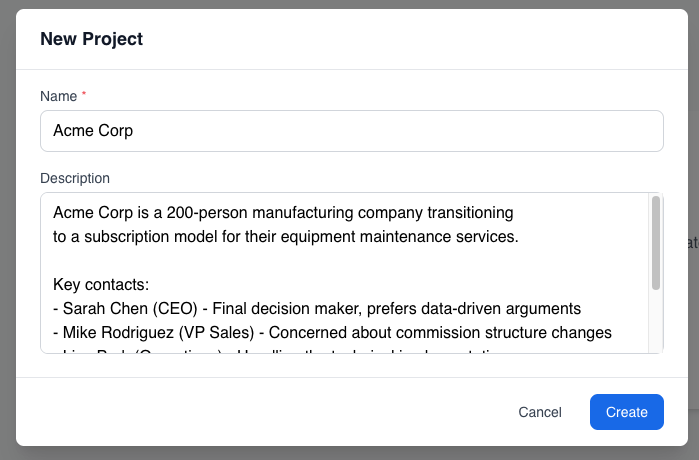
- Write a description with all the relevant context
What to Put in the Project Description
This is where you add context specific to this project. The AI will see this description in every chat within this project.
For a client project, you might include:
- What you're helping them with
- Key stakeholders and their roles
- Important decisions that have been made
- Constraints or preferences
- Background information
Example:
Acme Corp is a 200-person manufacturing company transitioning
to a subscription model for their equipment maintenance services.

Key contacts:
- Sarah Chen (CEO) - Final decision maker, prefers data-driven arguments
- Mike Rodriguez (VP Sales) - Concerned about commission structure changes
- Lisa Park (Operations) - Handling the technical implementation

We're in Phase 2: pricing strategy. Phase 1 (market analysis) is complete.
Budget approved for pilot program with 5 existing customers.
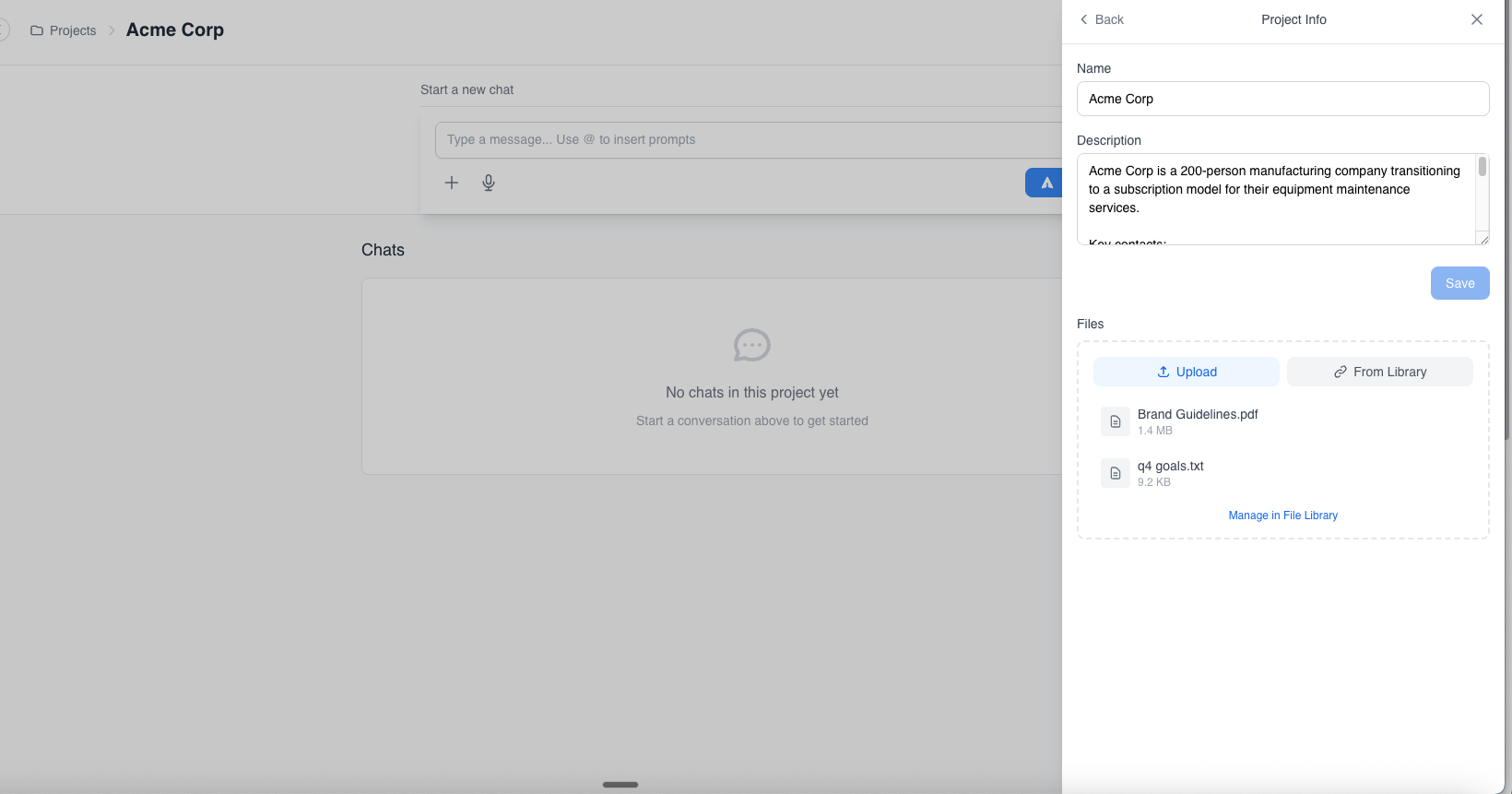
Attach Relevant Files
If you have documents related to this project, attach them now:
- Scroll to the Files section of your project
- Click Upload or drag files in
- The AI will be able to reference these files in your chats
Good files to attach:
- Project briefs or scope documents
- Brand guidelines or style guides
- Reference materials you'd otherwise paste into chats
- Meeting notes or decision logs
Step 3: Start a Chat
Now let's put your context to work.
Starting a Chat in Your Project
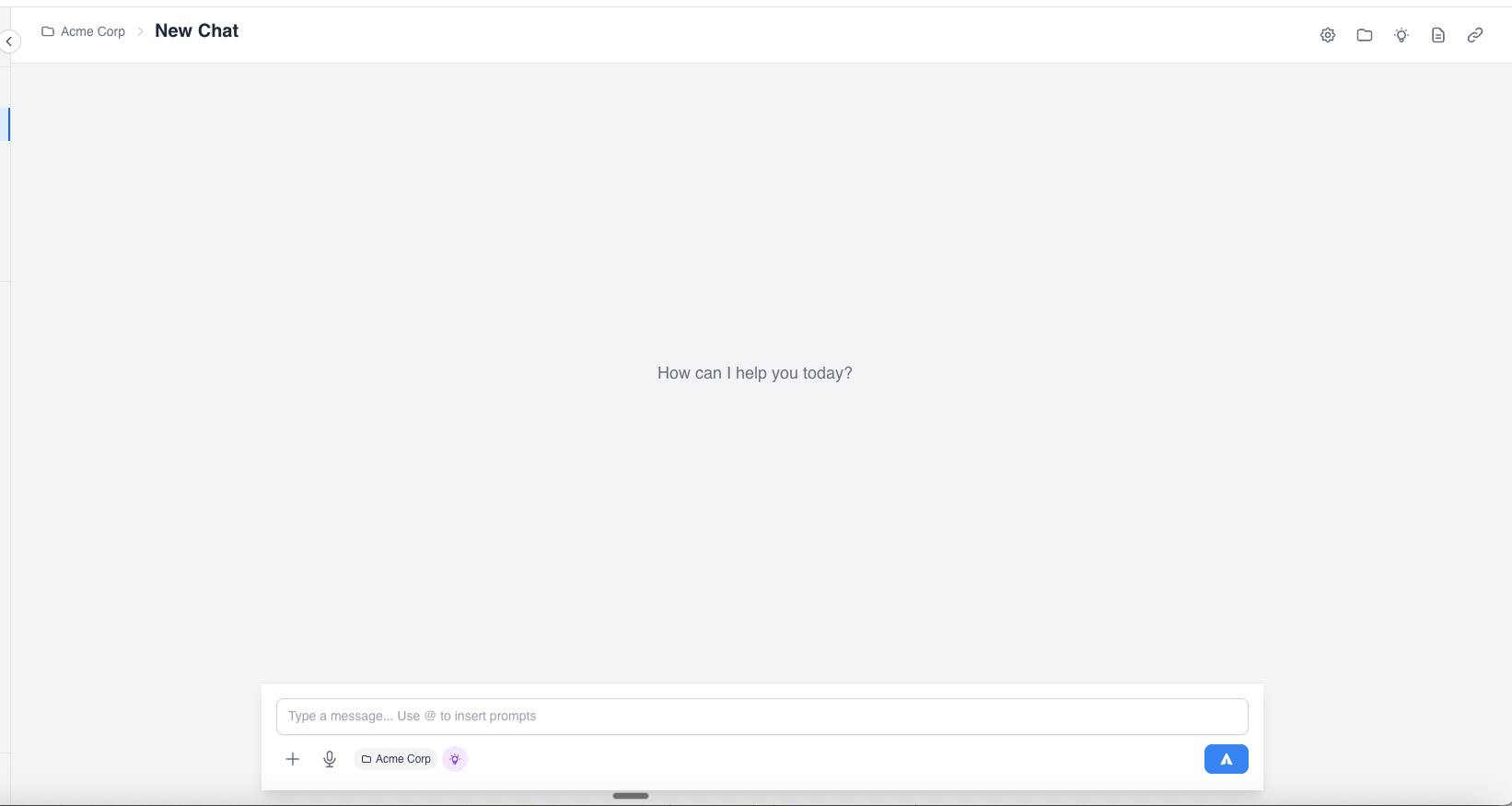
- With your project selected, click New Chat (or go to build.promptblocks.app/chat)
- You're now in the chat interface with your project context loaded
Try It Out
Just start working. The AI already has your context, so you can dive right in:
- "I'm preparing for tomorrow's meeting — help me think through the key points I want to make"
- "I'm stuck on how to position this proposal — what angles should I consider?"
- "I'm drafting an update for the team — here's what happened this week..."
Notice how you don't need to explain who you are or what the project is about. The AI already knows.
It gets better over time. The more you chat, the more context PromptBlocks accumulates. It learns from your conversations and builds memory — we'll cover this in the next step.
Step 4: Explore the Chat Features
While you're chatting, take a moment to notice the features available to you.
Quick Actions Sidebar
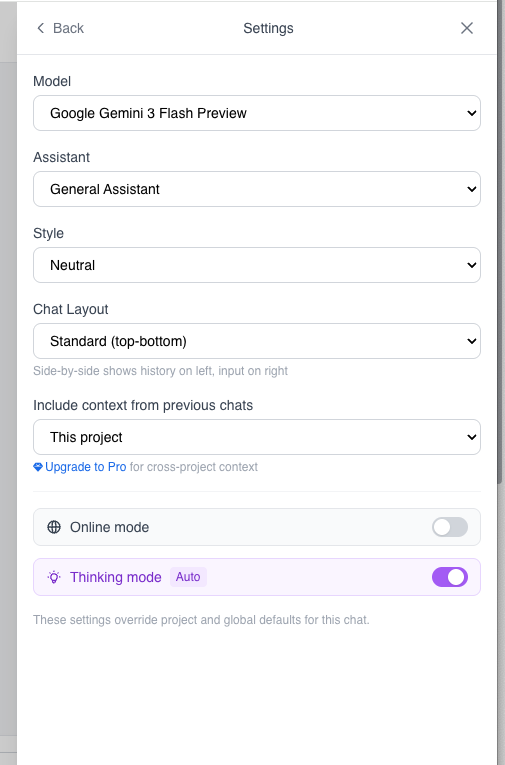
Click the gear icon in the top-right header to open the quick actions panel. Here you can:

- Switch models — Choose between different AI models
- Choose an Assistant — Select an AI personality (Writing Partner, Research Analyst, Creative Strategist, Critical Reviewer, or create your own)
- Set a Style — Adjust the communication tone (Professional, Concise, etc.)
- Enable Online Mode — Let the AI search the web for current information
- Enable Thinking Mode — Let the AI think longer before responding, leading to better results on complex questions
Learn more about Assistants and Styles →
Chat Context Options
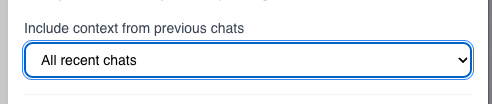
Depending on your subscription tier, you can include context from previous conversations:
- No chat history — Each chat starts fresh (just your Global and Project context)
- Project chats — AI can reference previous conversations in this project
- All chats — AI can reference conversations across all your projects
Navigate Your Chats
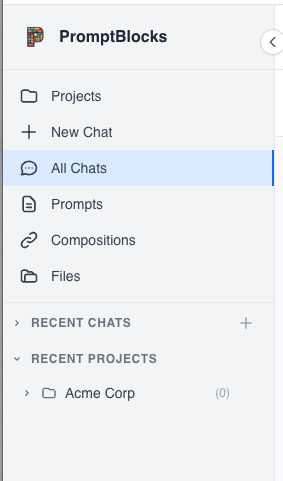
In the sidebar, you can view your chats. You can also go to build.promptblocks.app/chats to see all your conversations.
- By Recent — See your most recent conversations across all projects
- By Project — See conversations grouped under each project
Step 5: Watch for Memories
As you chat, PromptBlocks learns from your conversations and will suggest memories to save to the project. After a few exchanges, you'll see a memories indicator appear.

The Four Levels of Context
This is the key mental model for understanding PromptBlocks. Your AI conversations draw from four layers of context:
| Level | What It Is | Scope |
|---|---|---|
| Global Context | Who you are, your preferences, your situation | Every chat, everywhere |
| Project Context | Project description and attached files | Every chat in this project |
| Memories | Facts the AI learns from your conversations | Persists within the project |
| Chat History | Previous conversations the AI can reference | Depends on your subscription |
Each layer adds richness. A question asked in your "Acme Corp" project gets answered by an AI that knows:
- Who you are (Global)
- What this project is about (Project)
- Decisions you've made in past conversations (Memories)
- What you discussed recently (Chat History)
This is the power of PromptBlocks — the AI accumulates understanding over time instead of starting from zero every conversation.
You're Up and Running
You now have:
- Global Context that follows you everywhere
- A project with relevant context and files
- An understanding of how the four context layers work together
What's Next?
Keep chatting. The more you use PromptBlocks, the more valuable it becomes. Your memories accumulate. Your context refines. The AI gets better at helping you.
Refine as you go. Notice when the AI doesn't have context it needs? Add it to your Global Context or Project description. Context is meant to evolve.
Explore more features when you're ready:
- Prompts — Save and reuse text templates, inject them with
@mentionsyntax - Compositions — Build workflows from prompts
- Personalization — All the ways to help PromptBlocks get to know you and set better context
Power feature: Once you have multiple projects, you can switch between them mid-conversation to pull context from different areas of your work. Working on a client proposal and need pricing info from your Finance project? Switch, chat (grabbing the updated context), switch back.
The Honest Truth About Onboarding
PromptBlocks is most powerful when it has your context. But that means you need to invest time upfront to set things up.
The good news: this is a one-time investment. Once your Global Context is written and your projects are configured, you're set. From then on, every conversation benefits from the foundation you built.
If it feels like work at first, that's normal. Keep going. The payoff comes when you realize you haven't had to explain who you are or what you're working on in weeks — the AI just knows.
Need More Detail?
This Quick Start gets you going fast. For deeper exploration:
- Key Concepts — Understand all the building blocks
- Step-by-Step Guide — Detailed walkthrough with role-based examples
- Settings Reference — All configuration options explained
- Use Cases — See how different roles use PromptBlocks